TABLE OF CONTENTS
- Summary of how Toast and HotSchedules talk to each other
- Instructions on how to edit time cards from previous business days:
- FAQs + Troubleshooting
Summary of how Toast and HotSchedules talk to each other
- Every 2-3 hours, Toast and HotSchedules "sync" employee data and time punches.
What this means:
-When you add a new employee in Toast, they will not appear in HotSchedules until next sync.
-When you update a wage in Toast, it will not appear in HotSchedules until next sync.
-When you add a new job for an employee in Toast, it will not appear until next sync.
- They do NOT sync time card edits done on previous business days.
What this means:
-If a timecard is edited on the same day of the punch, HotSchedules will sync this change.  You only need to edit the timecard in Toast.

-If a timecard is edited on a previous business day, HotSchedules will NOT see this change.  You will need to edit the timecard in Toast AND in HotSchedules.
Instructions on how to edit time cards from previous business days
Step 1 - Edit in Toast
Toast - via Toast Web
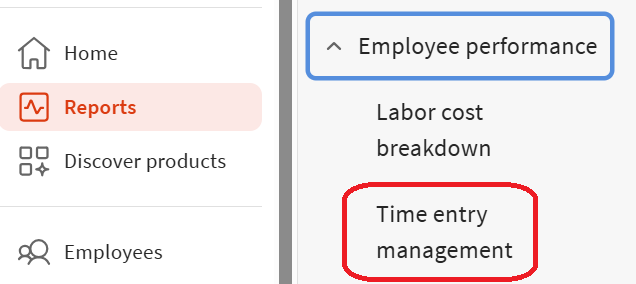
- Navigate to Reports -> Employee Performace -> Time Entry Management
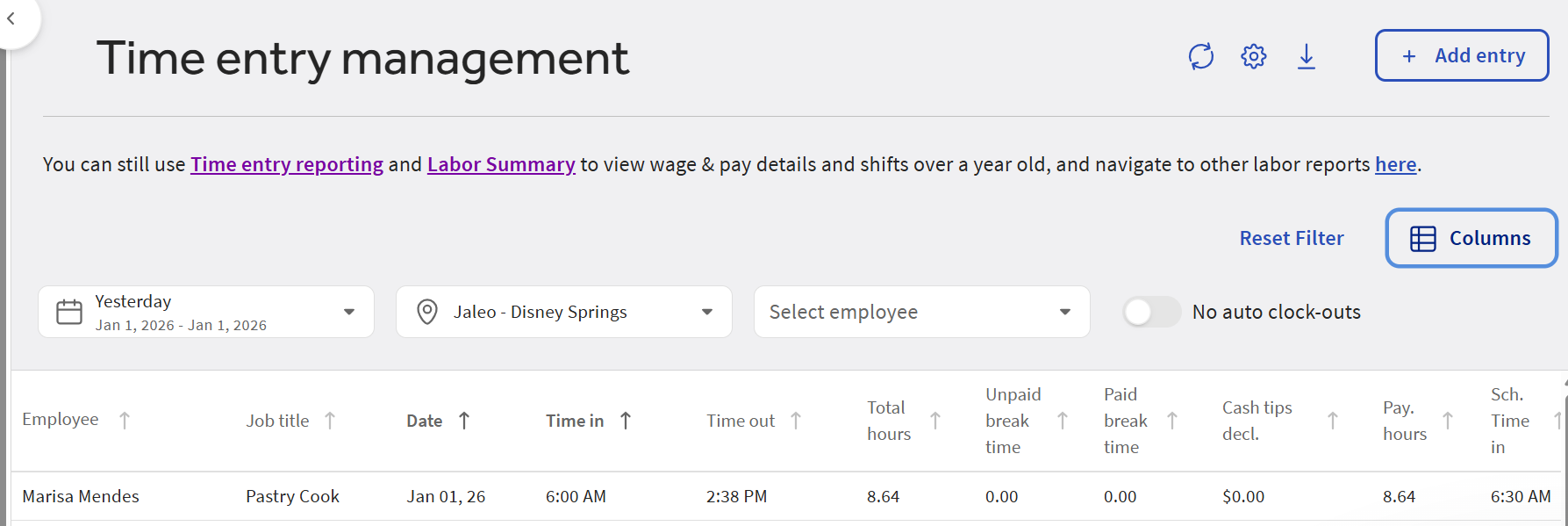
- Select your date range, and click on the employee's shift that you would like to edit.
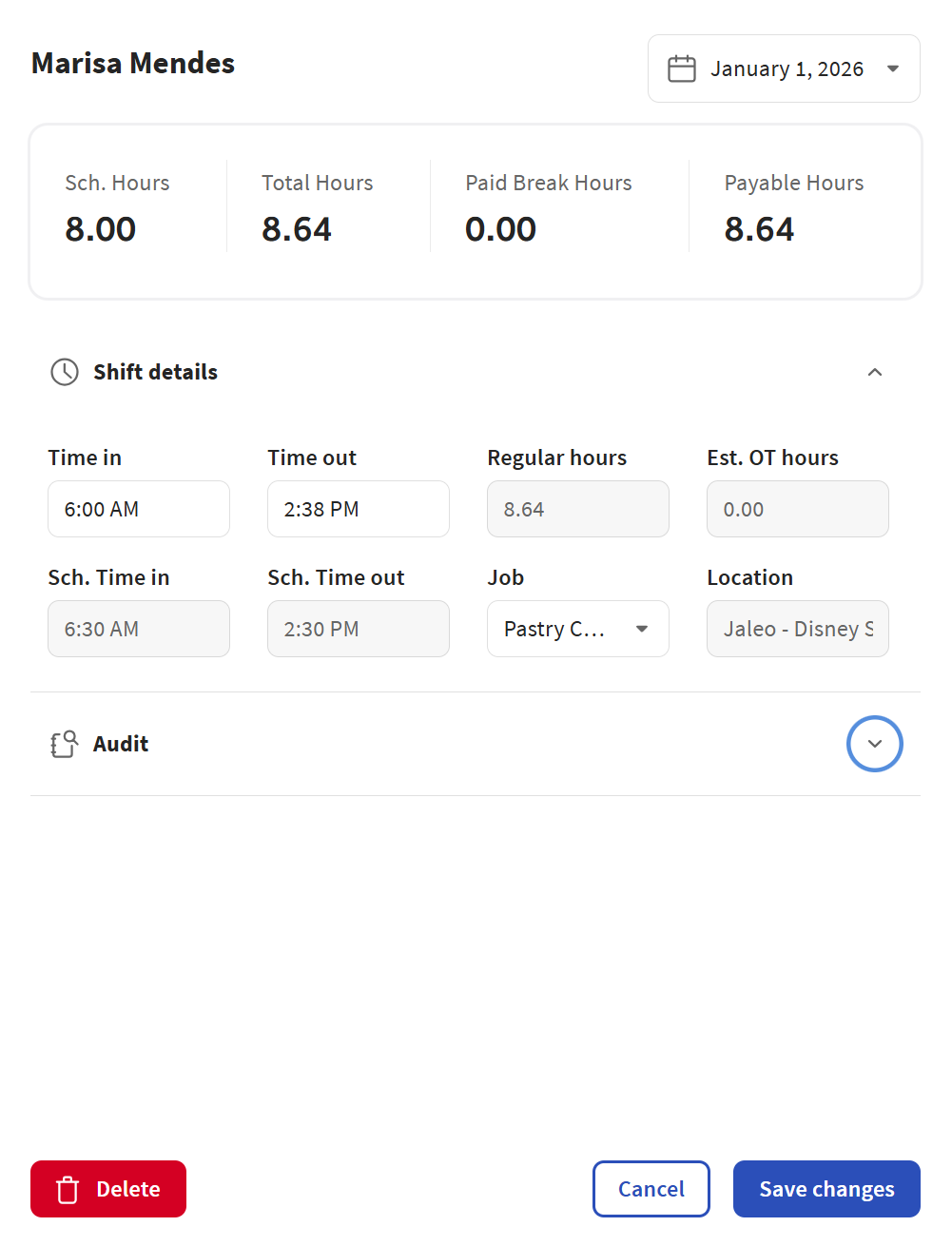
- A window will open from the side. Here you can update times, the job, or even adjust any declared cash tips.
- You can also click the Audit dropdown to see any edits already done to this timecard along with details.
- Click Save Changes to complete your edit.
Toast - via ToastNow app
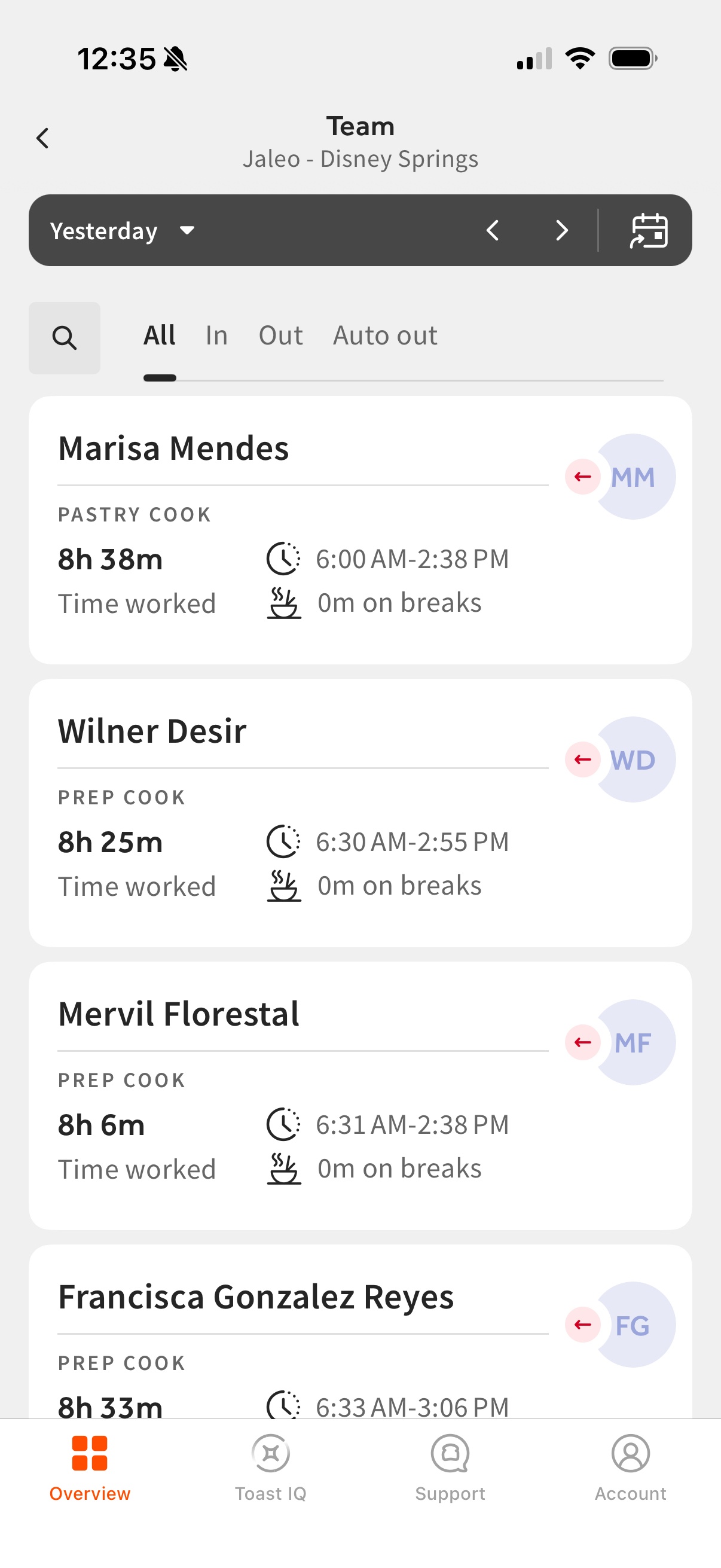
- First, select the date of the shift you want to edit. Then, click into the Team tile.
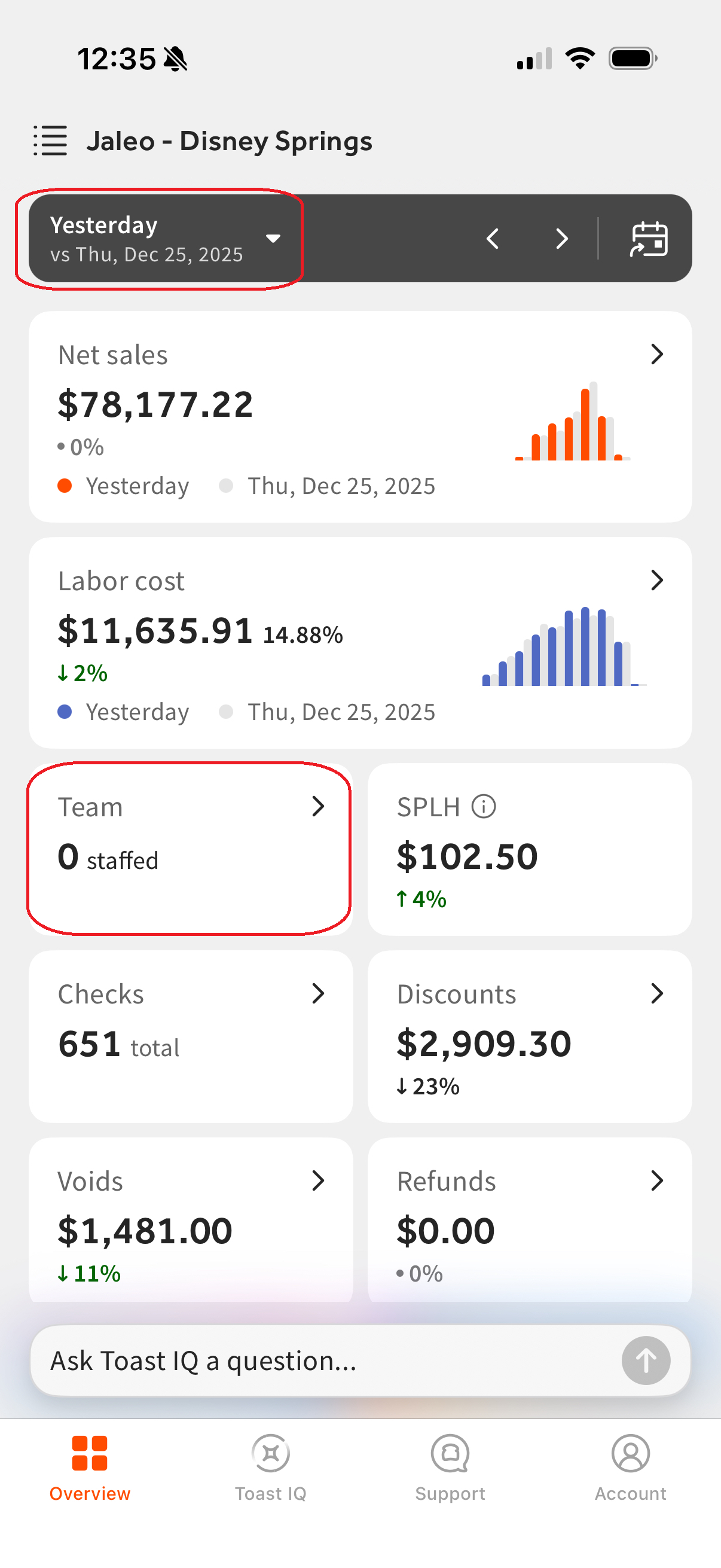
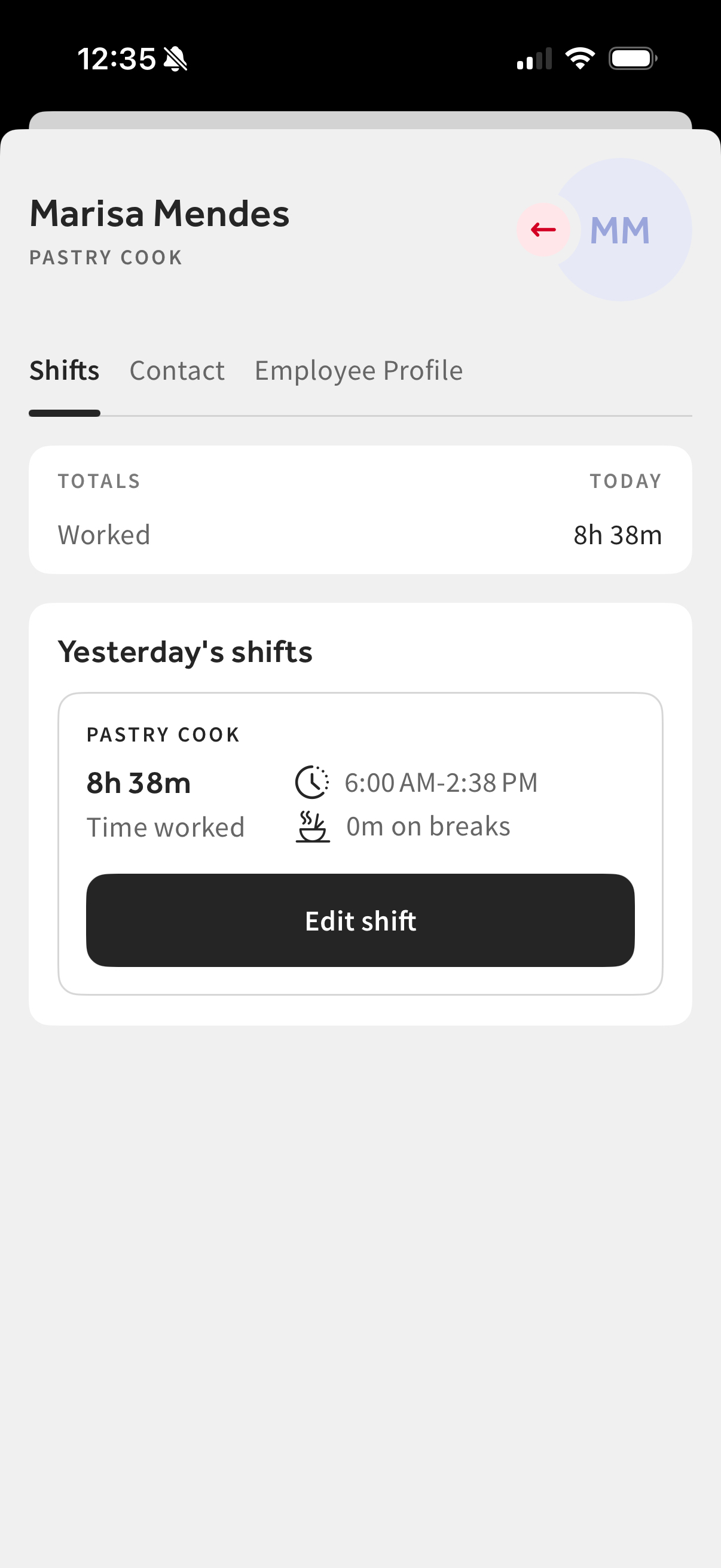
- Click on the Employee who needs their shift adjusted. Then click Edit Shift
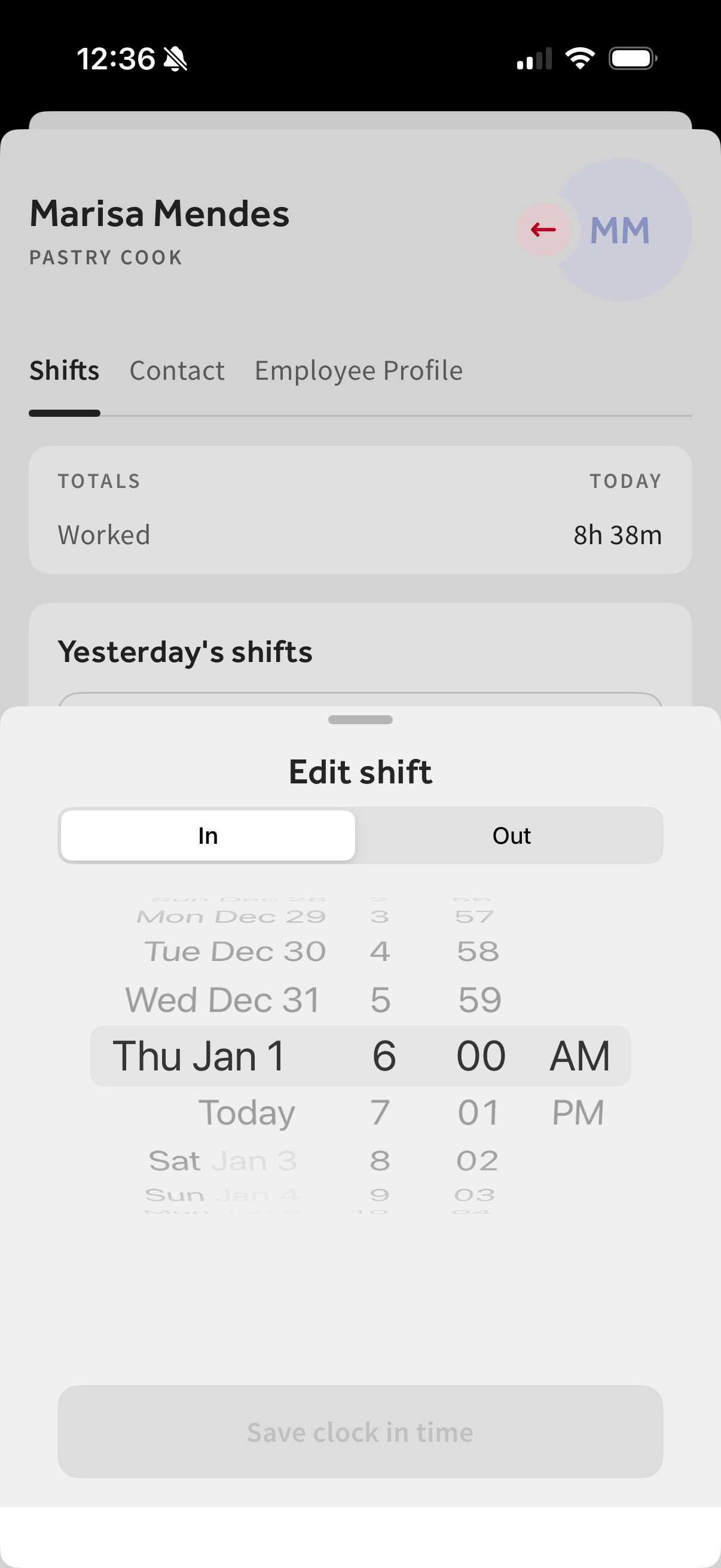
- Use the Date/Time picker to scroll and adjust the In and Out times as needed.
Step 2 - Edit in HotSchedules
HotSchedules - via Website
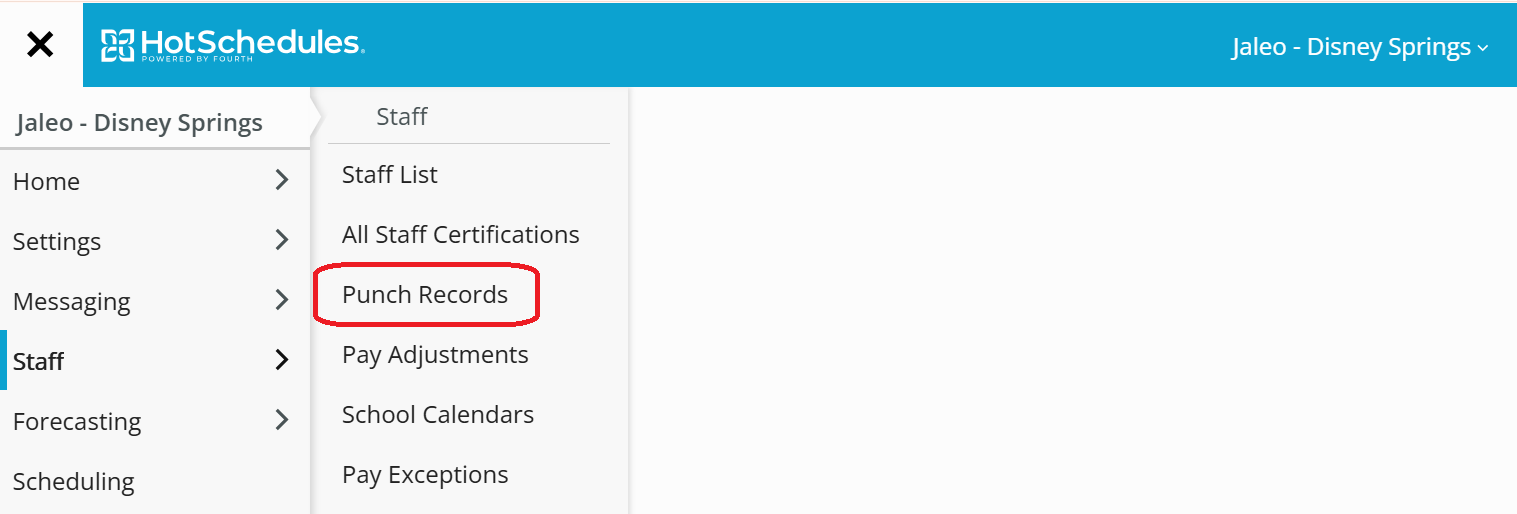
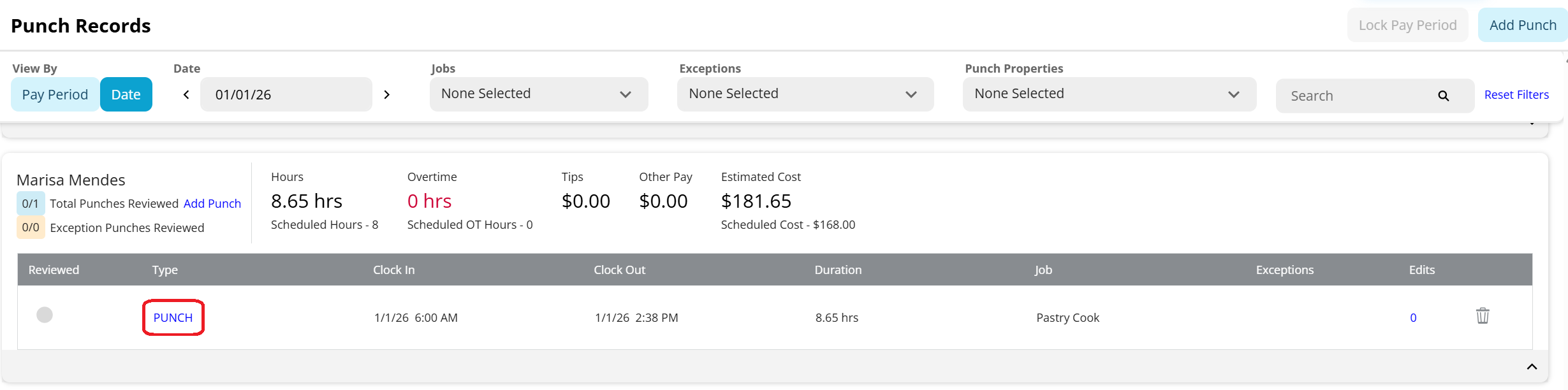
- Navigate to Staff -> Punch Records
- Find the Date + Shift of the employee that you need to edit.
- Click the dropdown arrow to view their punch record, then click on the blue PUNCH link to edit the timecard.
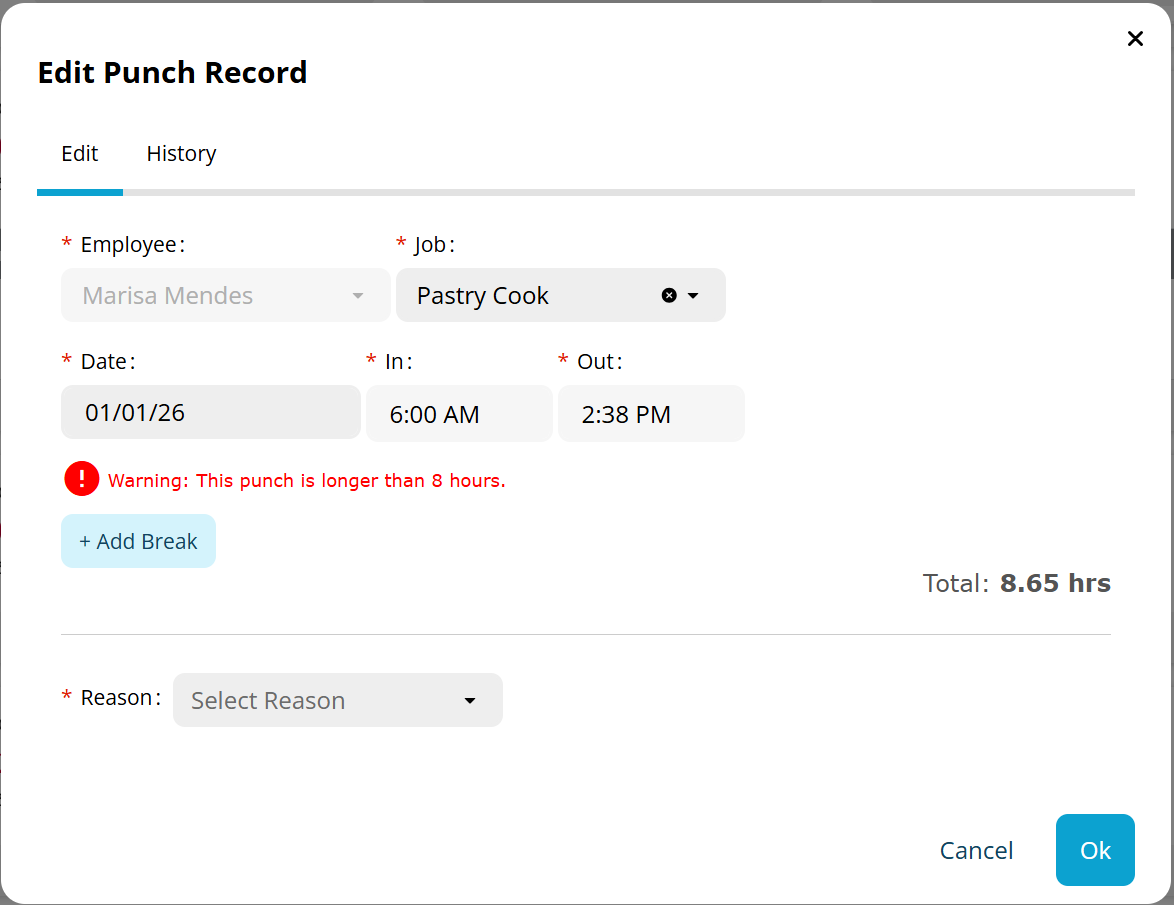
- Edit the In + Out times and Job Code, then choose your reason, then click Ok to save the edit.
FAQs + Troubleshooting
- Why are there extra steps to edit time cards for previous business days?
- Because HotSchedules does not pull edits done in Toast for previous business days. So then, you must edit the timecard in both Toast and HotSchedules.
- Why should we update timecards at all in Toast then?
- Most importantly, Toast is the "source of truth" for all time card data. HotSchedules simply pulls this data.
- Toast timecards reflect immediately in your app, giving you real time labor data.
- Schedule enforcement is done in Toast, which allows for shift control and auditing.
- Edits made the same day do transfer over to HotSchedules.
- An employee's timecards for the pay period don't match between the systems.
- This likely means there was a timecard edit done on a previous day that wasn't updated in both systems.
- You can confirm this by using the Audit tool in Toast for the shift, or by clicking the edits area of the punch record in HotSchedules.
- Ensure that when you are reviewing timecards for payment in HotSchedules, that the total hours worked between the systems match.
- Raise a ticket with support@joseandres.com if further investigation is needed!
Was this article helpful?
That’s Great!
Thank you for your feedback
Sorry! We couldn't be helpful
Thank you for your feedback
Feedback sent
We appreciate your effort and will try to fix the article