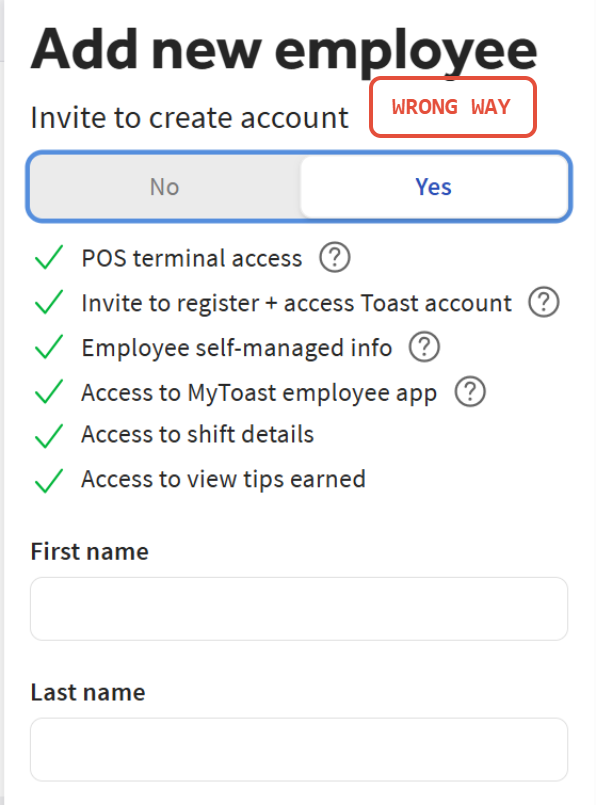
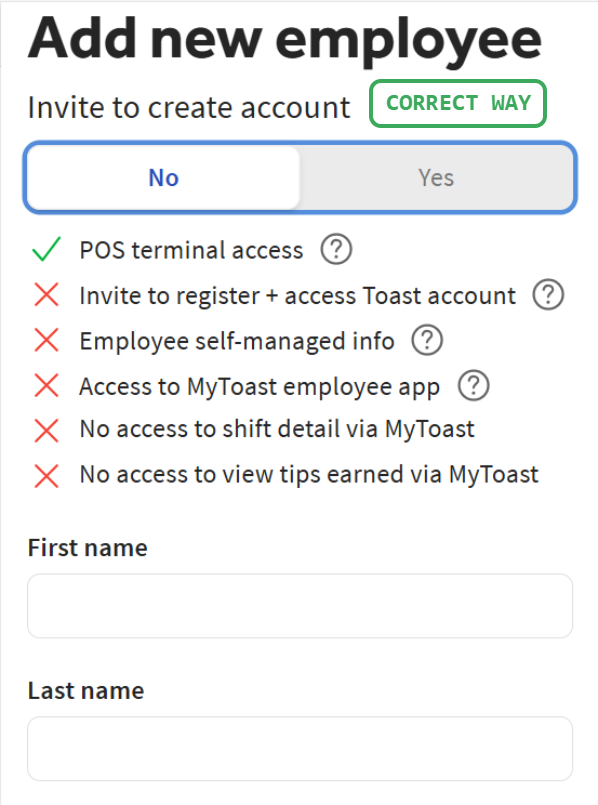
When you add an employee in Toast, it is important to take steps to ensure they are NOT invited to create a Toast account.
How do I make sure that we don't invite them to create an account?
- When you add a new employee in Toast, simply click "NO" on the first field.
Why would an hourly employee need a Toast account?
- Short Answer is they don't.
- A Toast account gives them access to the app, which is used for reporting on sales + labor, editing timecards, and chatting with support.
- These are mainly items for a manager or shift leader to review, and employees can also view this info in other tools they have access to.
What happens if I accidentially sent an employee a Toast invite during onboarding?
- If you sent a Toast invite to an employee, they will be required to complete the invite and activate their account.
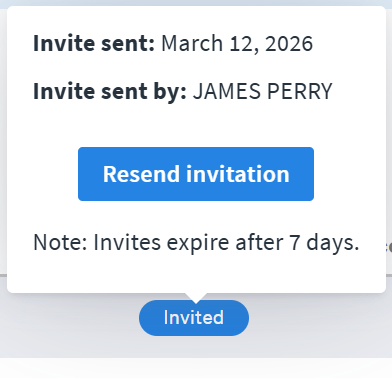
- You will see that the employee in Toast either has a blue Invited status or a red Expired status


- If you hover over the status, you will be able to re-send the invite to their email address to complete.
Why does Toast send an invite by default for new employees?
- This is something we are seeking clarity on and attempting to have Toast fix. There is not a clear reason why they send invites by default.
Can't I just archive them and start over?
- No.
- They are locked with that contact info once the invite is sent in Toast. Archiving them does not clear that info.
- Even JAG Admins and Toast Support are NOT ABLE TO EDIT OR CLEAR THEIR INFO.
- If you try to archive them and create a new employee with the same info, the accounts will merge and you will be stuck again (with potentially more issues).
The easiest path to fixing this situation is to AVOID inviting employees. If they are invited by mistake, the ONLY way to fix this without investing significant time is by having them complete the activation.
Can't I just archive them and start over?
- No.
- They are locked with that contact info once the invite is sent in Toast. Archiving them does not clear that info.
- Even JAG Admins and Toast Support are NOT ABLE TO EDIT OR CLEAR THEIR INFO.
- If you try to archive them and create a new employee with the same info, the accounts will merge and you will be stuck again (with potentially more issues).
If there is no path to fixing yourself, here are the steps that need to be taken:
- Create a support ticket with Toast, indicating that an employee was invited but can't complete the invitation.
- They will transfer you to the Account Recovery (SOAP) team. Expect to be on hold for 5-15 minutes.
- To update the employee info, you will need to provide a picture of your government issued ID and a selfie for verification.
- Once this is approved, Toast will ask how you would like to update the employee info - use the template below:
- Convert phone number to a dummy number => 669-326-6991 change to 669-326-1111
- Convert email address to a fake address => james.perry@joseandres.com to james.perry@test.com
- Convert payroll ID to a dummy number => 76001234 to 760012341111
- TOAST CANNOT CLEAR THESE FIELDS, THEY CAN ONLY BE EDITED TO PLACEHOLDER VALUES.
- Wait for HotSchedules to sync these changes, which usually takes 2-3 hours.
- **DO NOT SKIP THIS STEP. HOTSCHEDULES WILL BEHAVE UNEXPECTEDLY IF YOU CREATE ANOTHER EMPLOYEE WITH THE SAME INFO BEFORE THE PREVIOUS ONE IS CHANGED.
- Archive the employee in Toast once HotSchedules has synced.
- **DO NOT ARCHIVE THE EMPLOYEE BEFORE HOTSCHEDULES HAS SYNCED. OTHERWISE THEY WILL BE TERMINATED IN HOTSCHEDULES WITH THEIR REAL INFO INSTEAD OF PLACEHOLDERS.
- Add a new employee in Toast.
- MAKE SURE YOU DO NOT INVITE THEM TO CREATE AN ACCOUNT.
- Re-use the previous email, phone, and payroll ID.
- Wait for HotSchedules to sync the new employee.
- Reinvite them to HotSchedules, re-create their schedule, and add in any hours that were worked under their previous account.
Was this article helpful?
That’s Great!
Thank you for your feedback
Sorry! We couldn't be helpful
Thank you for your feedback
Feedback sent
We appreciate your effort and will try to fix the article