Skill levels can be used in combination with autoscheduler to assign shifts by seniority.
- Skills can be created by anyone with GM access or above.
- Skills CANNOT be deleted. Please start a ticket with HotSchedules support to remove a skill level.
When logged into the Store,
Store Settings -> Skills -> Add New Skill
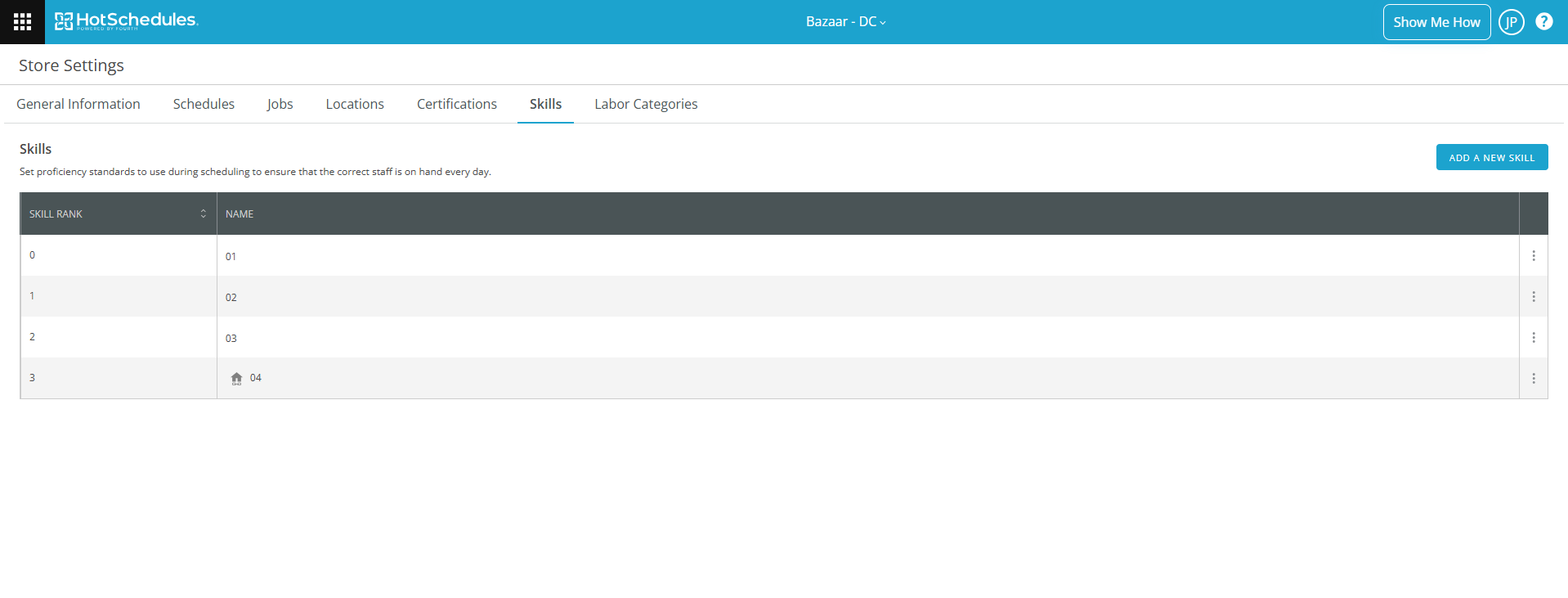
Then you assign the skill to each employee's job.
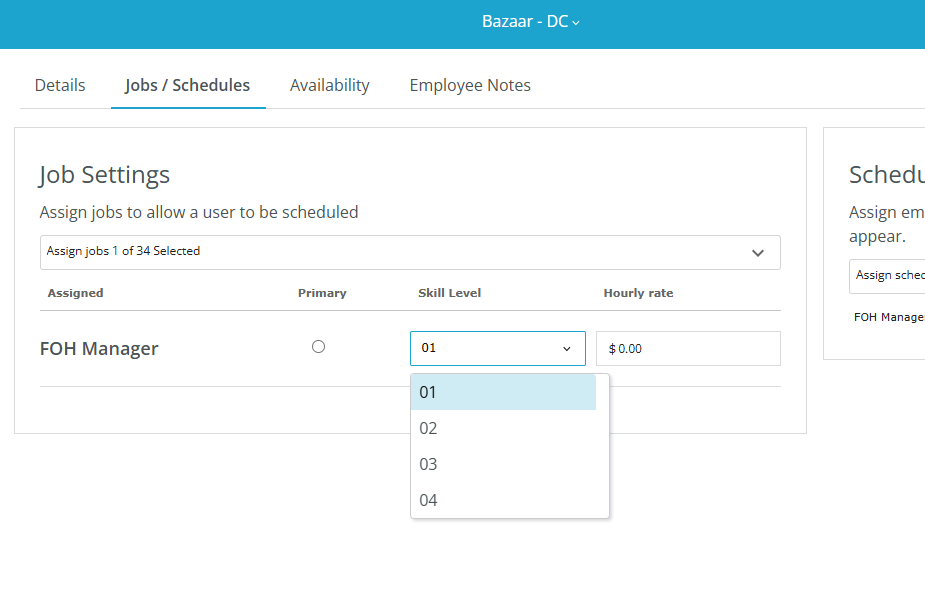
Staff -> Staff List -> Click on employee -> Jobs/Schedules
Assign the skill level for each job as shown below.
When Scheduling, you can use the Auto Scheduler to assign shifts based on skills.
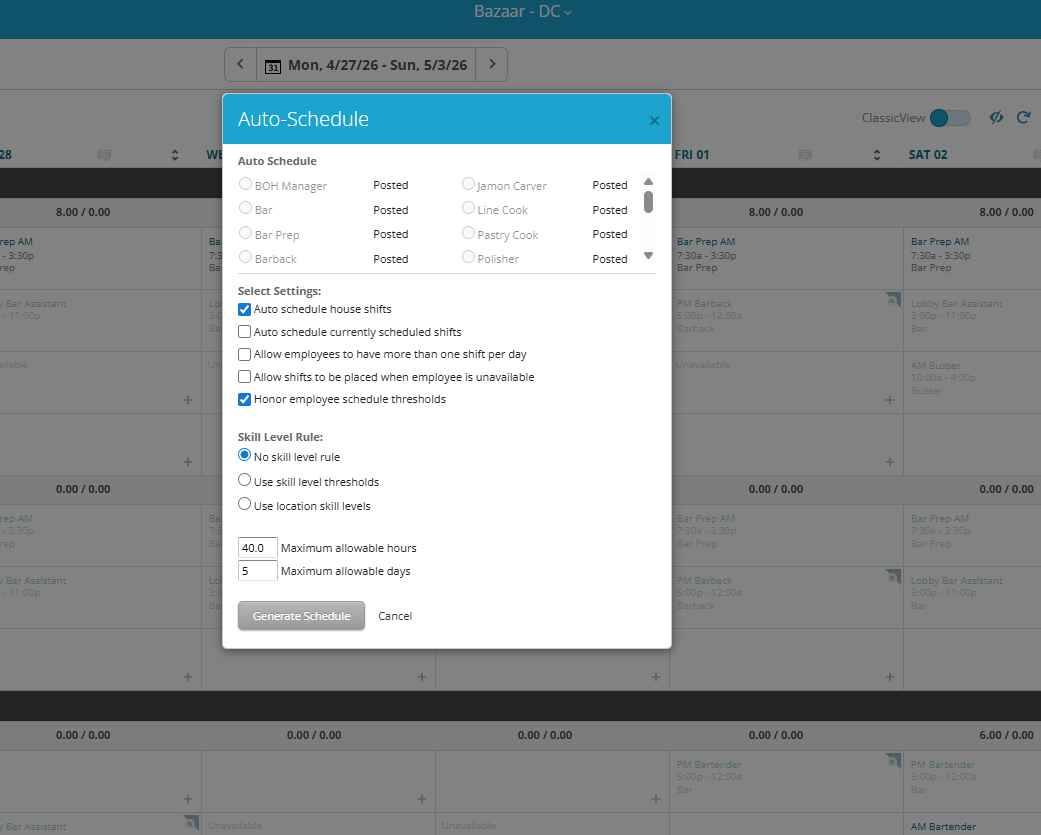
Scheduling -> Menu -> Auto-Scheduler
Choose the options for your auto-scheduling. Make sure that Skill Level Rule is updated to be used.
Confirm this is correct or make adjustments as required before posting the schedule.
Was this article helpful?
That’s Great!
Thank you for your feedback
Sorry! We couldn't be helpful
Thank you for your feedback
Feedback sent
We appreciate your effort and will try to fix the article