In this case, if you enter an employee into Toast and they appear in HotSchedules with completely different information - it may be that the employee profiles were merged in HotSchedules.
This is not expected behavior and shouldn't ever happen. The only time it does is when 2 different employees are entered into Toast with the same Payroll ID. HotSchedules sees the same payroll ID for 2 employees and MERGES them, assuming that the employee was simply added to a different location.
Here is an example below.
- The issue is that an employee from Zaytinya Palo Alto (Joe Fernandez) was entered into Toast with payroll ID 76002927. THIS IS CORRECT.
- When he syncs with HotSchedules for the first time, he does not appear in the list of employees. When you search for their HR ID in HotSchedules, you instead find Jeffrey Hernandez.
- This is an example of completely different information. So now it's time to find out what restaurant Jeffrey Hernandez belongs to.
- HotSchedules ASC -> Reports -> Employee Data Report is a good one, shows all data for every location.
- We find he is an employee of Jaleo DC.
- Below, you can see both Toast records have the same payroll ID. This means that their profiles in HotSchedules were merged - see how Jeffrey has Joe's username... Joe has Jeffrey's name/job/etc.
Jeffrey Hernandez - Jaleo DC
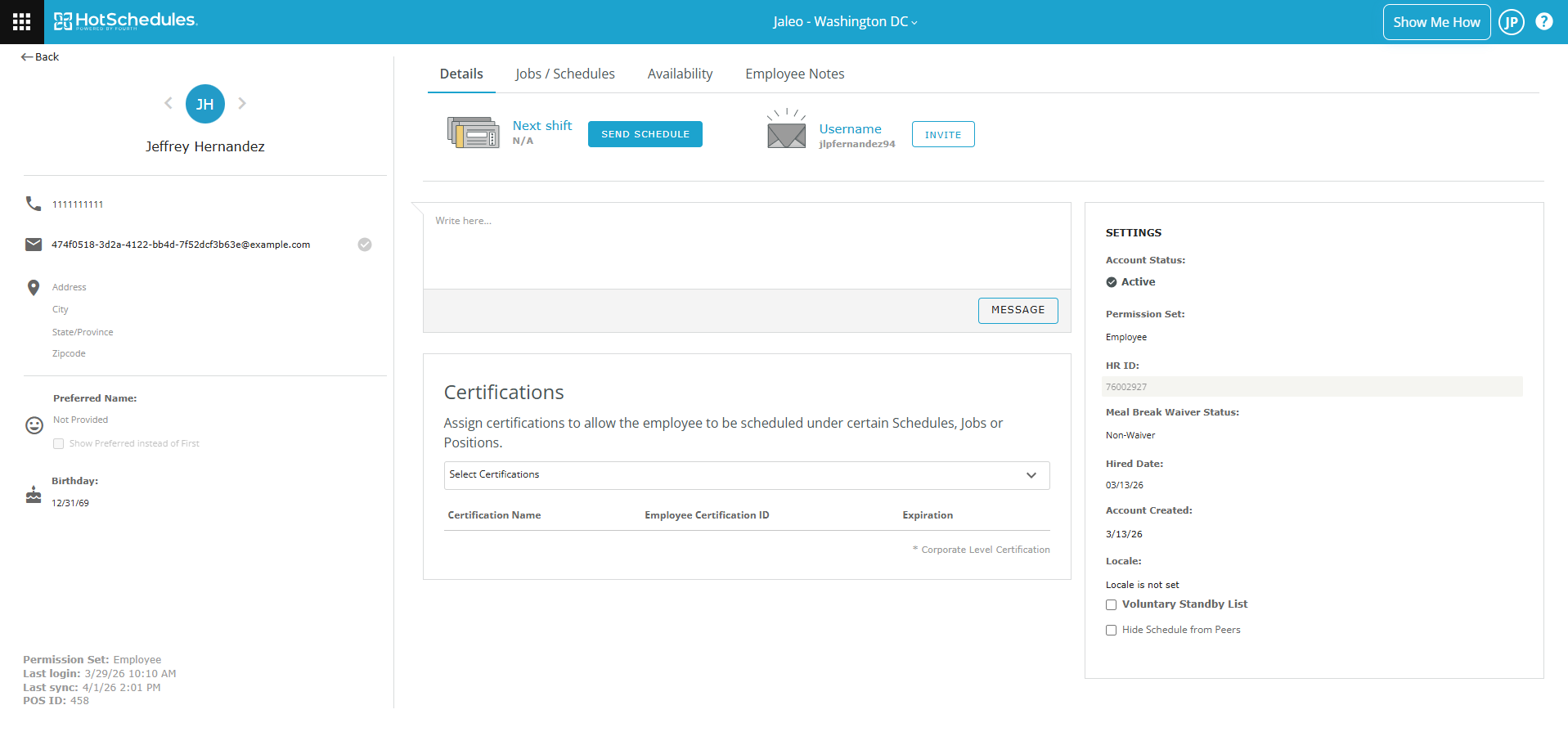
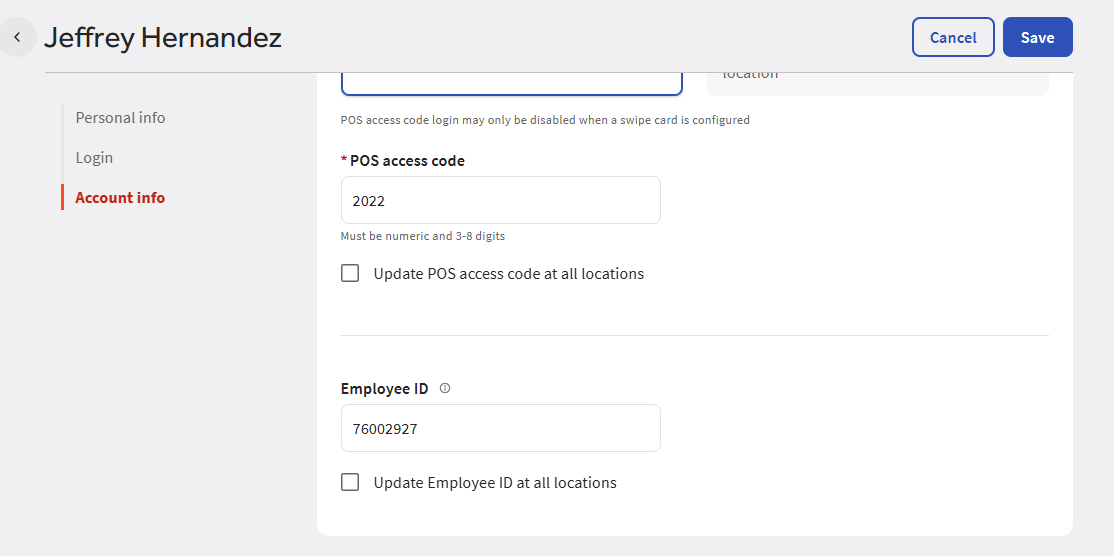
Joe Fernandez - Zaytinya Palo Alto
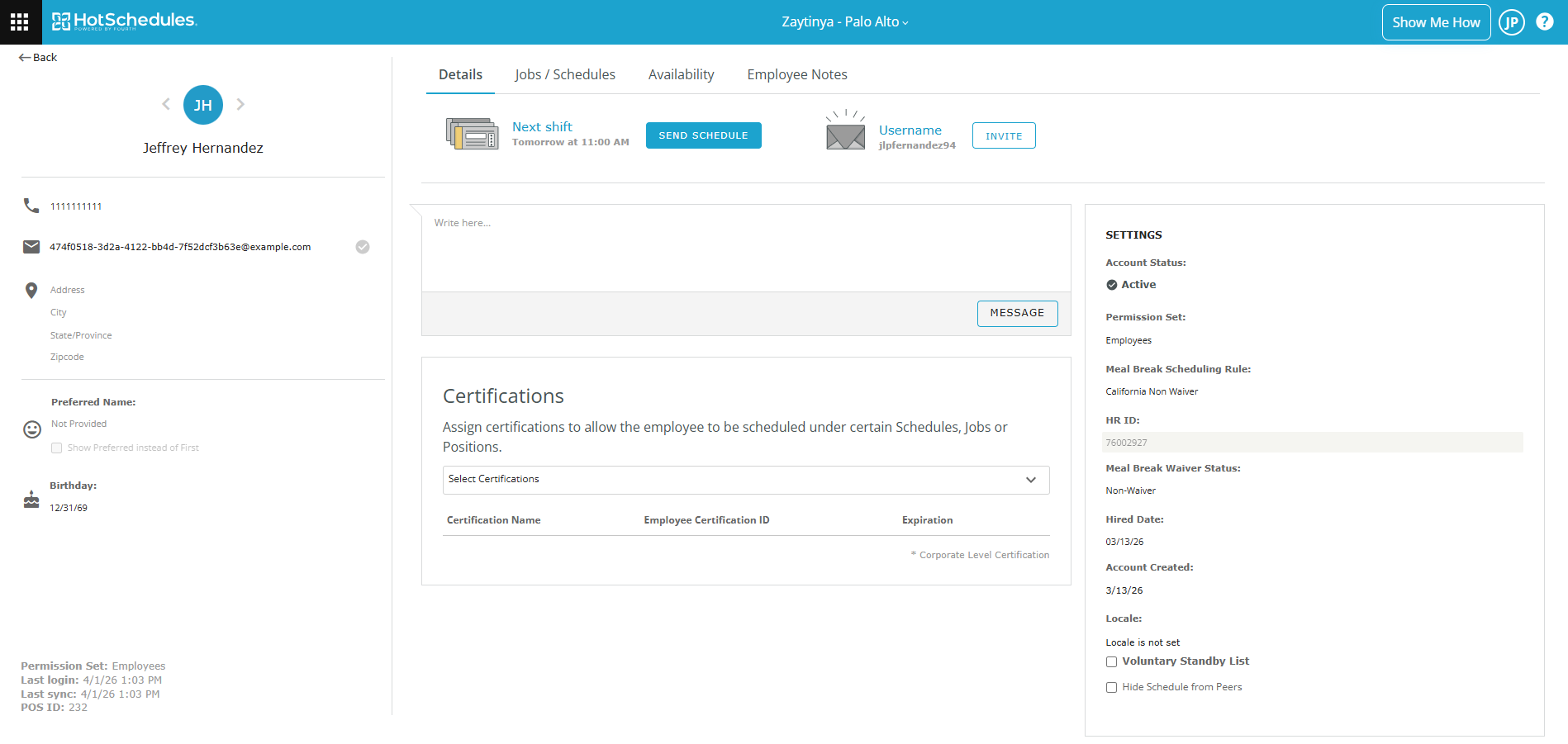
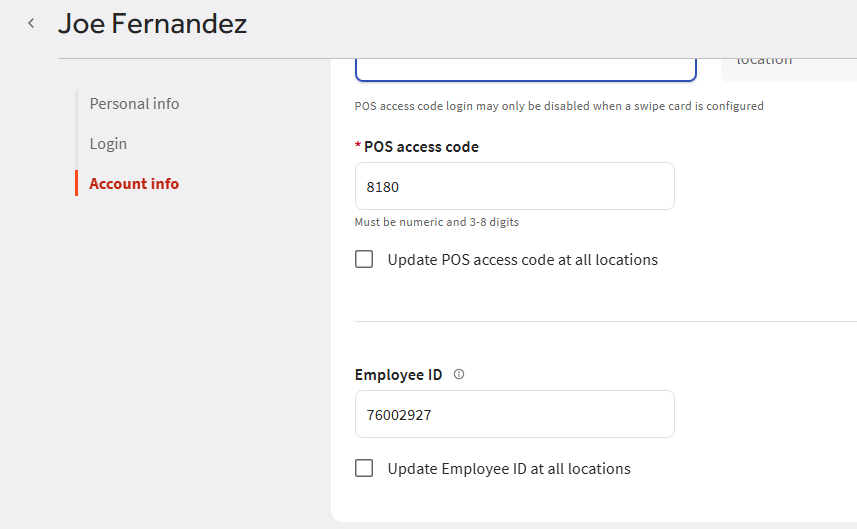
HOW TO FIX
- First, look to see if this was a mistake typing or if 2 employees actually have the same payroll ID. Most of the time, it is a mistake... if 2 employees share a payroll ID this is a bigger deal and HR needs to be notified immediately.
- When you search Paylocity, you notice there is no evidence of Jeffrey Hernandez even if you look at terminated records.
- When you search the entire company for the payroll ID, you only find Joe Fernandez.
- Double check that Jeffrey is a "ghost employee" by checking their worked shift data in Toast for the last few months.
- Reports -> Time Entry Reporting -> Filter for employee and set dates to be last 3-6 months.
- You see no time entries recorded for Jeffrey.
- Using above, we can conclude that Jeffrey was a ghost employee - likely brought over when we migrated from Harri.
- Since they are not an active employee, we will try to fix the records manually.
Step 1 -
- Find the incorrect employee in Toast.
- Add random digits to the end of their payroll ID so its fake... instead of 76002927 use 760029271236
- Update their phone number to be blank. If it's required, use a fake number. Example: 301-645-0000
- Update their email address to be blank. If it's required, use a fake email. Example: test@test1111.test
- Save their record. Do NOT archive yet.
Step 2 -
- Find the correct employee in Toast.
- Do the same as in Step 1, using different payroll IDs, Phone Numbers, Emails.
- Save their record. Do NOT archive yet.
Step 3 -
- Wait for updated records to sync with HotSchedules.
- This won't unmerge the records and fix everything yet, but will at least set us up to recreate the employee correctly when everything syncs.
Step 4 -
- Archive both employees in Toast.
- **IF the employee has worked any hours during the current week, make sure they are documented.
- Wait for the records to disappear from HotSchedules.
Step 5 -
- After employees disappear from HotSchedules,
- Recreate the correct employee again, with the correct information.
Was this article helpful?
That’s Great!
Thank you for your feedback
Sorry! We couldn't be helpful
Thank you for your feedback
Feedback sent
We appreciate your effort and will try to fix the article