TABLE OF CONTENTS
- How to look up a guest on the POS
- Guest Checks - Room Charge Trailer
- Pay a Check with a Room Charge
- How to refund a Room Charge
- Room Charges & Offline Mode
How to look up a guest on the POS
To use hotel guest search on the POS:
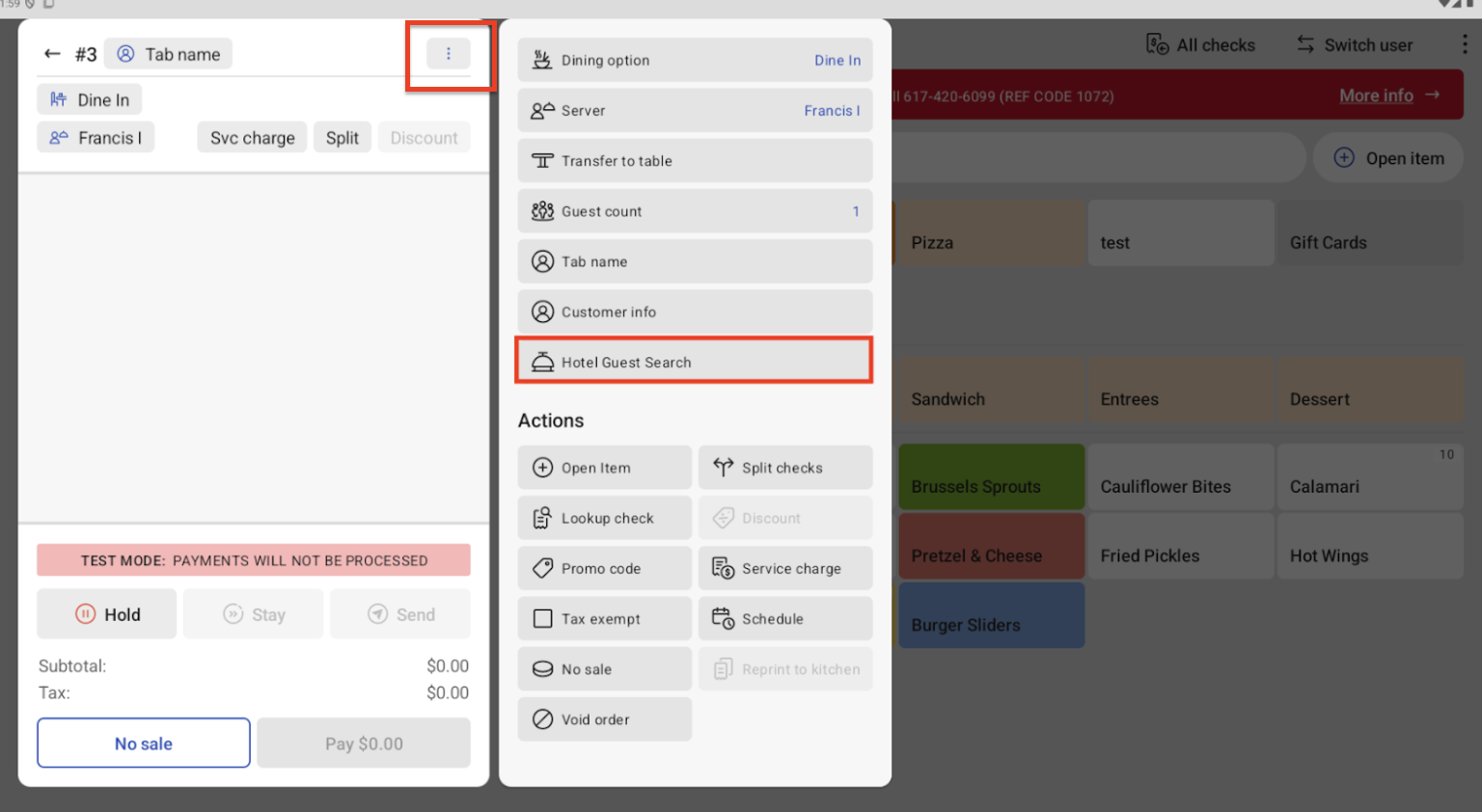
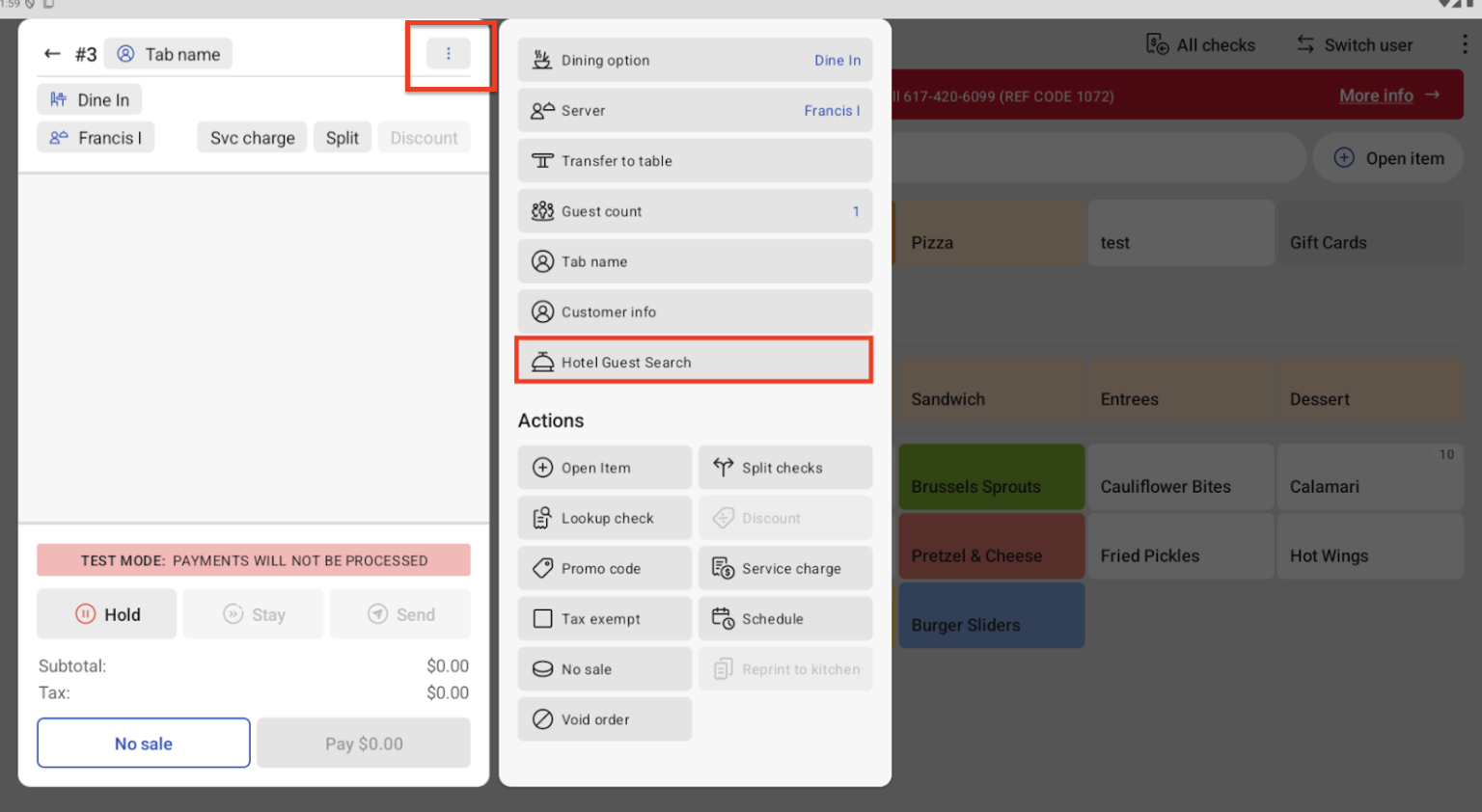
- Open the overflow menu (three vertical dots) on the POS and select Hotel Guest Search.
- In Table Service mode, the overflow menu is in the top right corner of the screen.
- In Quick Service mode, the overflow menu is in the top right corner of a check.
- Enter your guest details and select Search.
- Select the guest name. If no guests match the search criteria, no results will be found.
- Select the blue Select Guest button in the bottom right corner.
- After selecting the guest, you will be navigated back to the order screen automatically. On the order screen, you’ll see the guest's information in the top left corner of the check.
Guest Checks - Room Charge Trailer
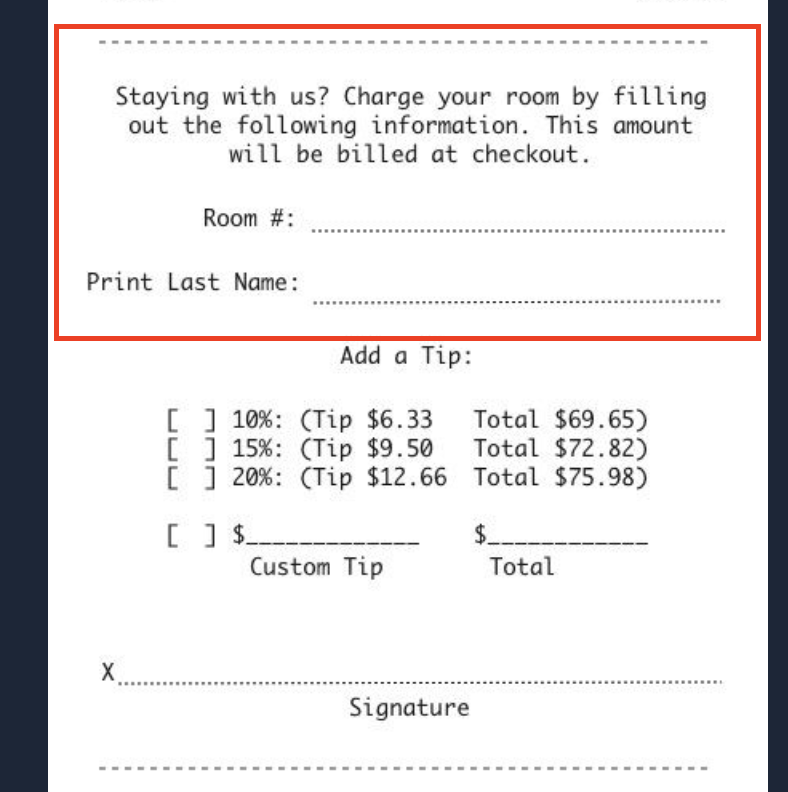
Open checks that are printed will have a trailer where the guest can also input this information.
Pay a Check with a Room Charge
To pay a check with a room charge, follow these steps:
- Input the guest’s order from the POS as usual.
- When the guest is ready to pay, select Pay and then select Other payments > Room charge from the list of options on the payment screen.
- The Guest search screen will appear. You can look up a guest by their room number, name, or a combination of room number and name (this depends on your specific PMS integration).
- Room number searches must be exact and complete. For example, searching ‘1’ would only return room number 1, not 100, 101, 111, etc.
- Guest name searches can be partial, down to a single letter. For example, searching ‘S’ will return names that contain the letter 'S' in the name. However, please note this could vary by PMS partner.
- After selecting the correct guest information, the charge will be processed. If digital receipts are configured, the Toast POS device prompts the restaurant employee to add the tip amount.
The check will be closed to the room charge payment option and posted to the hotel PMS.
Here is a video that outlines how to close a check to a room charge.
How to refund a Room Charge
You can refund a guest’s room charge just like you would for another payment type (learn more: Issue a Refund).
If a room charge payment needs to be updated, the previous payment must be voided, and a new payment added to the check for the new total.
- Room charge payments do not currently support updates to a previously posted payment, and will not add the additional amount to the guest room bill.
Learn how to void a payment here: Void Items, Payments, and Checks.
Room Charges & Offline Mode
Hotel PMS integrations are not supported in offline mode because they rely on an active connection between the Toast POS and the property management system to validate a guest’s reservation and post a charge to their folio.
If you’re in offline mode, you may see a notification that says, “Room Charge transactions cannot be processed in offline mode.”
When in offline mode, you should:
- PRIMARY OPTION: Leave checks associated with hotel guests' checks open until the restaurant is back online. When the restaurant is back online, you can close orders through the PMS integration.
- SECONDARY OPTION: While in offline mode, you can close orders to the Room Charge - Offline payment and note the guest’s room number as the tab name.
- When the system is back online, you can navigate to the Payments report in Toast Web (Reports > Payments > Payments) to view checks that were closed to your “Room Charge - Offline” payment.
- You can use this report to then manually enter these transactions on a guest’s folio in the PMS with the help of the hotel.
- This option should only be considered if there is an extended internet or Toast outage impacting your ability to close these checks correctly.
Was this article helpful?
That’s Great!
Thank you for your feedback
Sorry! We couldn't be helpful
Thank you for your feedback
Feedback sent
We appreciate your effort and will try to fix the article